Support

Quick Start

Welcome to Hexoskin. Follow each step before your first recording.

What Is in the Box

If you ordered a kit, you receive:

  • A Hexoskin shirt
  • A Hexoskin device
  • A USB charging cable
  • Elastic bands for the shirt: one for women’s models, two for men’s models
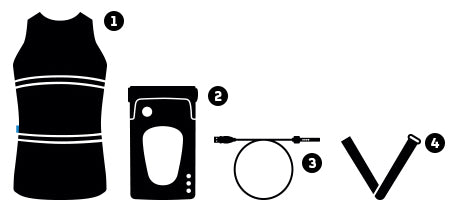
Hexoskin kit packaging

Charge the Device

Your Hexoskin device ships partially charged. Charge it for 2 hours before first use.

Connect the device directly to your computer with the USB cable (avoid USB hubs). The orange LED blinks while the device charges and turns solid orange when charging is complete.
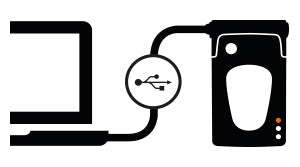
Hexoskin device charging over USB

Install Hexoskin OneSync and Sign In

  1. Download Hexoskin OneSync for macOS or Windows.
  2. Install and launch Hexoskin OneSync.
  3. Sign in with your Hexoskin account. This account also signs you in to Hexoskin OneApp.
  4. Plug your Hexoskin device into your computer with the USB cable. The device serial number appears at the top of the window.
Download Hexoskin OneSync on the Mac App StoreGet Hexoskin OneSync from Microsoft

Assign Your Device and Sync

The first time you use a new Hexoskin device, assign it to an account in Hexoskin OneSync.

  1. Select Assign.
  2. Choose the user account to assign to the device.
  3. The device now shows the user’s email address, and recordings sync to that account.
Assigning a device in Hexoskin OneSync

Install Hexoskin OneApp

While the device charges, install Hexoskin OneApp on your phone or tablet, or update it to the latest version.

Open the app and log in, or register. Enter your profile information (height, weight, and so on) so Hexoskin can calculate your data correctly. You can change it at any time in your profile.

Download Hexoskin OneApp on the App StoreGet Hexoskin OneApp on Google Play

Put On the Shirt

  1. Turn the shirt inside out and moisten the three gray electrodes with cream for a good signal.
  2. Use the elastic bands included: one at abdomen level (men and women) and one at thorax level (men only).
  3. Turn the shirt right side out and put it on carefully, without stretching it too hard. Smooth out wrinkles so the fabric stays in contact with the skin.
  4. Connect the device to the shirt connector and place it horizontally in the shirt pocket, wire upward and light outward.

Plugging the shirt into the device turns it on and starts the recording; the middle orange LED stays lit. When you unplug the shirt, recording stops and the device shuts down after 60 seconds.

Moistening the Hexoskin shirt electrodes

Care for Your Shirt

Disconnect the device before washing: the shirt is washable, the device is not waterproof. Sync your data and recharge the device each time you take off your Hexoskin.

  1. Before washing, remove the device and put the wire connector back in the zipped pocket.
  2. Use the delicate cycle with cold water.
  3. Hang to dry. The shirt does not go in the dryer.
  4. Avoid twisting the fabric, which could damage the textile sensors.

Pair by Bluetooth

Pair your Hexoskin device with Hexoskin OneApp before your first recording. Before you start:

  • Install or update Hexoskin OneApp.
  • Make sure the device is not recording: unplug it from the shirt; the second orange LED is off. It must not be syncing with a computer.
  • Turn on Bluetooth on your phone or tablet.

Your device serial number decides the steps: Hexoskin Smart devices are numbered 42000 to 99999, Hexoskin Classic devices 01000 to 41999.

iPhone and iPad
  1. If you paired a Hexoskin device with an earlier version of the app, open Settings, then Bluetooth, select your HX device, and choose Forget This Device.
  2. Open Hexoskin OneApp and log in with your Hexoskin account.
  3. Add a device: choose Hexoskin Smart (42000 to 99999) or Hexoskin Classic (01000 to 41999).
  4. Hold the device button for about 5 seconds, until the blue light turns on.
  5. Select your serial number under Discovered Hexoskin device.
  6. When the Bluetooth Pairing Request appears, select Pair.
  7. Wait for the confirmation. Your device appears under Paired devices and the Home screen opens.
Android Phones and Tablets
  1. On first launch, allow both Bluetooth permissions, choose Precise location, then select Allow all the time and go back to the app.
  2. Log in to Hexoskin OneApp, or select Sign Up to create an account.

Hexoskin Smart (42000 to 99999)

  1. Choose the option that matches your serial number. The app scans for nearby devices.
  2. Check the serial number, select your device, and tap Pair.
  3. Recorder Details shows the status, model, firmware, and battery. Go to the Home screen to record.

Hexoskin Classic (01000 to 41999)

  1. Hold the device button for about 5 seconds, until the blue light turns on.
  2. In the Android Bluetooth settings, select your device serial number.
  3. In Hexoskin OneApp, open Devices at the top right, select Change, and choose your device.

To record, plug the device into the shirt. The second LED turns on and the blue LED flickers while the device talks with the app.

View Your Data in Hexoskin Dashboard

  1. Log in to Hexoskin Dashboard.
  2. Browse your reports, activities, and records from the top menu.
  3. Manage your teams and athletes, your profile, and the permissions you give a coach or colleague from your name in the top menu.
  4. For processed or raw data, select Reports, then a record. Select Raw data for deeper analysis. Data downloads in several formats from the menu at the right.
Hexoskin Dashboard reports

Need Help?

Support articles, guides, and answers from the Hexoskin team.

Hexoskin Headquarters

5800, rue Saint-Denis, Suite 601
Montréal, QC H2S 3L5, Canada

1-888-887-2044